 Free Click & Collect within 30 minutes
 Free delivery on orders over £39.99
 Free Next Day Delivery on orders over £75
 Gift Cards available

How to Record Your Own Stories for a Creative Tonie
3 min read
Last Modified 1 October 2026 First Added 1 October 2026
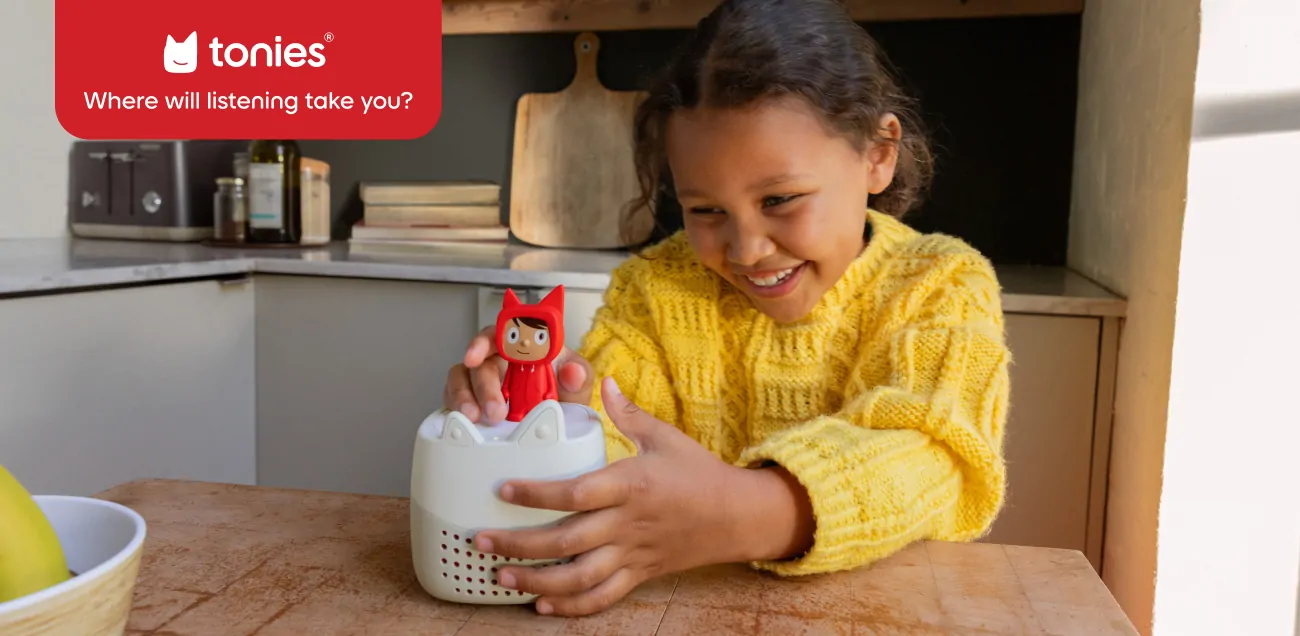
Creative Tonies are the Tonie Characters you can record your own audio onto, and there’s many ways to make the most of these (5 of which we’ve detailed in our handy blog here).
But how easy are they to use and what’s the process to record your own content onto them? Here, we go through it and explain what you need to do.
Download the mytonies app
Recording can be done via your phone, so you’ll need to download the app via your preferred app store. It’s free to get and once it’s been installed, create an account and log in.
From here, it’s incredibly easy to find the record button as it should be at the bottom of the screen. It also has a library of free audio you can download to your Creative Tonie if you don’t fancy recording something yourself.
Select Your Reading Material
Before hitting record, you’ll want to have what you’re going to say to hand. If you’re going to record something off the cuff or want a naturalistic feel to it then feel free to launch straight into it.
However, you might want to select a book chapter, or even write something down, first so you don’t stumble over what you’re saying or forget the words.
Record Your Words
Place your phone nearby so it will be able to pick up your voice clearly. You’ll want somewhere where there aren’t any background noises. Then, tap ‘record’ at the bottom of your screen, and then the microphone icon at the top of it before a red circle will pop up and you can begin recording.
You can pause recording at any time and either record another audio file or add to the one you already have started. Once finished, hit the stop button and then assign the audio to the Creative Tonie of your choosing.
Sync It Up to Your Toniebox
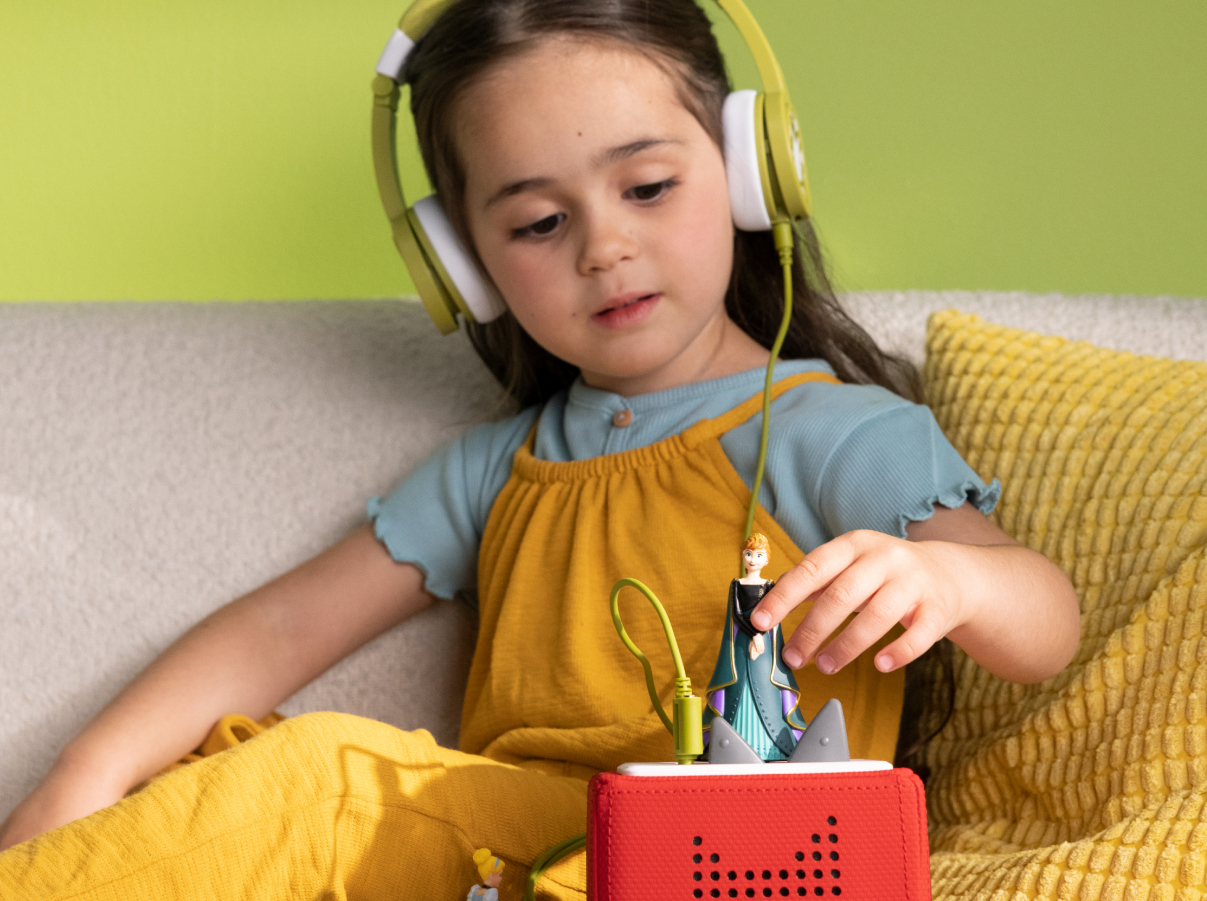
It’s now time to sync your content to the Toniebox. To begin, gently squeeze and hold either ear of the Toniebox for approximately three seconds, or until the LED status light starts flashing blue. This indicates that the device has entered sync mode and is connecting to download your recorded content. Once the sync is complete, your Toniebox is ready to use, and your audio can be listened to whenever you place the Creative Tonie on top.
Discover our full Tonies range with pre-recorded characters to add to your library or even build your own bundle to get your hands on everything you need to get started.
Read our disclaimers.