 Free Click & Collect within 30 minutes
 Free delivery on orders over £39.99
 Free Next Day Delivery on orders over £75
 Gift Cards available

Nintendo Switch Parental Controls: Keeping Play Fun and Safe
5 min read
Last Modified 14 May 2026 First Added 14 May 2026
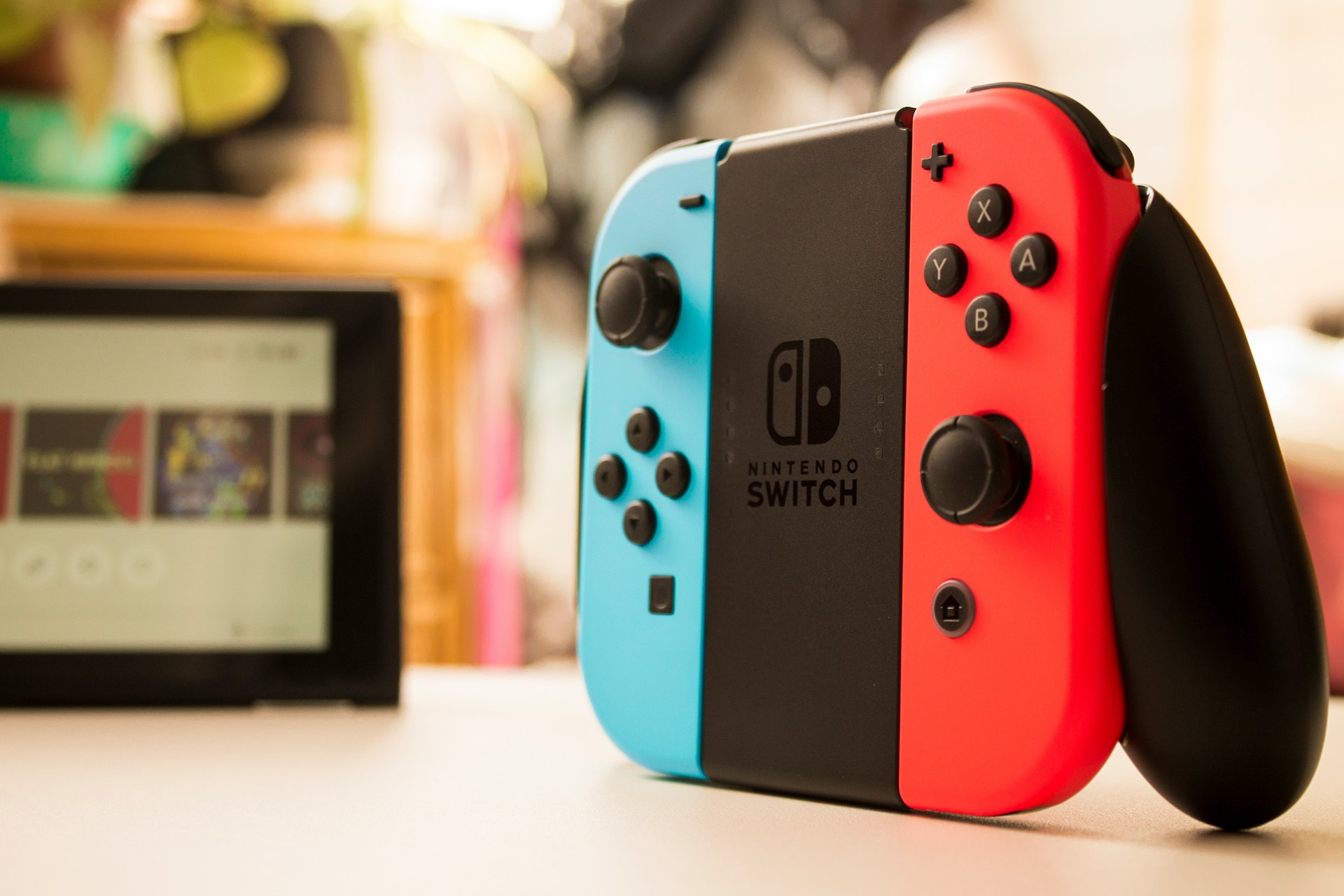
Nintendo consoles typically have games that skew to a younger audience. As such, their parental controls and online safety features are some of the easiest out there to understand and navigate.
Here, we talk through them to help you get a handle on how to use them in order to get the most out of fun, safe, play.
A free app for smart phones and mobile devices, the Nintendo Parental Controls app allows to monitor activity, control playtime, and restrict certain features remotely. If you don’t have a smart device, you can also set certain restrictions on the Switch and Switch 2 directly through the console’s settings.
To connect the Nintendo Switch Parental Controls app to a Nintendo Switch 2, download the app on your phone and log in with an adult Nintendo Account (you’ll need to create a profile on the console), and enter the six-digit code provided on your phone into the “Parental Controls” section of the Switch 2’s System Settings. This is the same for the Switch as well and can be found by navigating to System Settings > Parental Controls > Set Up Parental Controls > Use this App, then entering the code provided.
With the ‘Play Time Limit’ settings, you can set a time limit for how long your child is allowed to play, set a bedtime so they can’t play beyond that time and keep an eye on whether your children are keeping to their play limits.
In the app you can set a playtime limit by the hour and choose a bedtime. You can set this for a whole week or set days individually. When game time is up, a notification will let the player know it’s time to switch off. You can also toggle the ‘Suspend Software’ feature to put the console automatically into sleep mode when game time is up.
You can also access these settings via the consoles by finding Console Settings > Play-Time Limit.
Keeping an eye on who your child is communicating with and what they are sending can offer peace of mind when it comes to online gaming. Some Switch and Switch 2 games allow the exchange of messages or images and you can use the app to restrict features across the board or on a game-by-game basis.
Via the console, you can do this by selecting Parental Controls > Restriction Level > Use this Console and then setting to ‘Child’ or ‘Custom’ to choose what you wish to restrict.
GameChat has its own settings so these need to be adjusted separately. It’s possible to communicate via voice chat and video chat while playing games with friend but you can manage access via the app.
When a friend is added, you can approve or deny them communication access to stop your child speaking with strangers, and the same happens when a child tries to start a video chat (if they have a compatible USB-C camera). A request will be sent to the app when they try to begin this meet up and can only proceed if you approve it. Voice chat is not supported on the Switch, but the Switch 2 does have it and automatically disables it for users under 16.
You can also view the GameChat history to see what types of chats your child has been in and what conversations they’ve been having.
Nintendo has a wallet for their eShop where you can add a set amount of funds or use a credit card or PayPal to purchase extra content for games or even download whole games themselves. You can access this via the ‘Account Information’ on the console or proceed via the eShop until you get to the point of purchase.
Nintendo a password requirement for purchases meaning that parents can turn this on and then would need to input payment information for each buy, preventing accidental purchases or overspending.
You can find the Restricted Features page on the app and here you can set which games are played based on their assigned age rating. All games will have a PEGI age rating (which you can read more about in our blog here) and you can determine which age rated games you don’t want your child to play. There are preset levels of ‘Teen,’ ‘Child,’ and ‘Young Child’ or you can customise these to a preference of your own. These settings are also accessible via System Settings> Parental Controls on each console. Parents can instigate a 4-digit PIN to lock these settings, ensuring restrictions cannot be bypassed.
You can also restrict VR settings which stop 3D visuals being displayed. It is recommended that you restrict VR mode if the console will be used by children aged six or under.
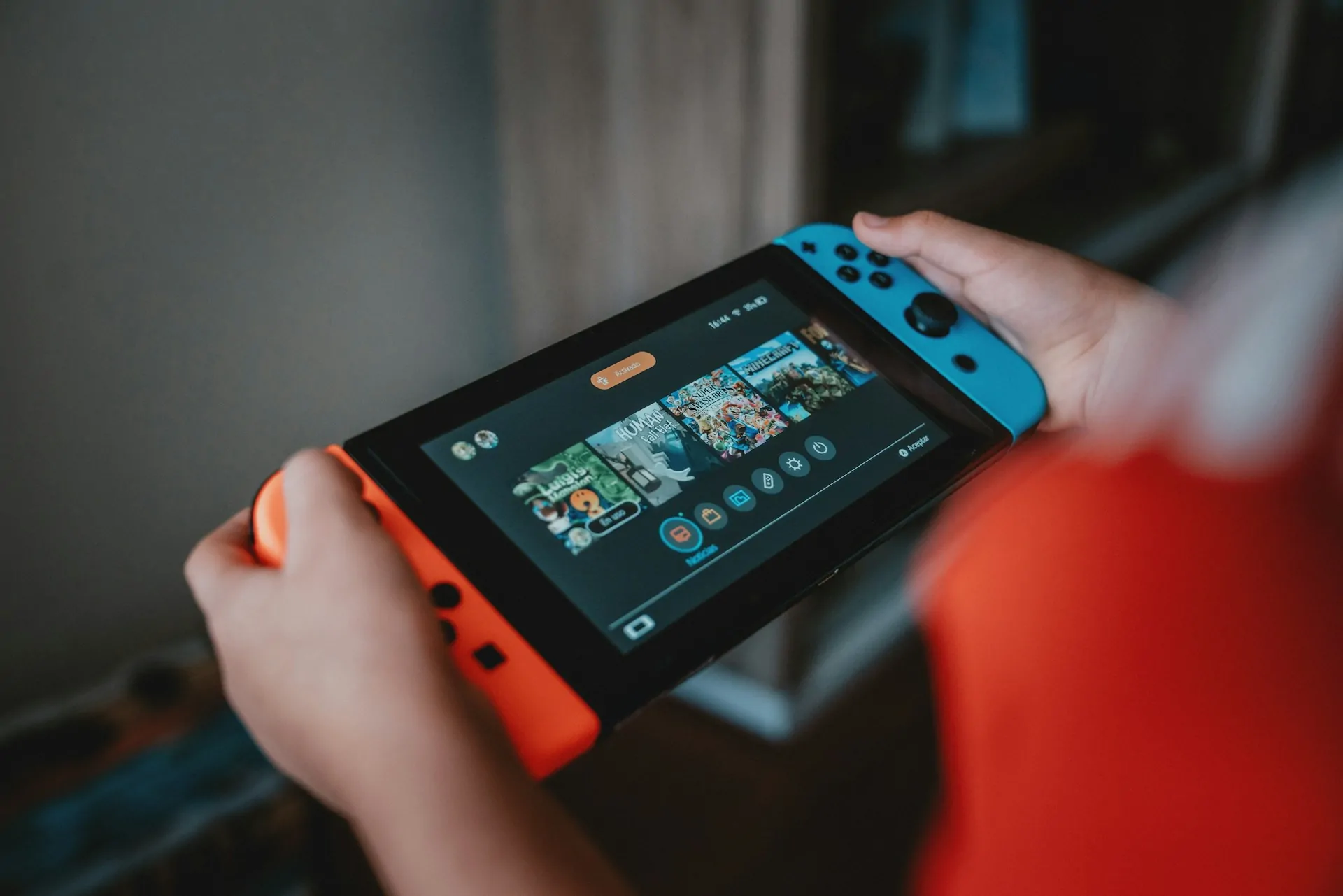
You can check what games your child is playing, and for how long with a daily breakdown or monthly summary via the app. With a calendar breakdown of hours played, most-played software and more, you can see what kind of games your child has been playing, how long they’ve been playing for and see what the average time played is.
You can see this via individual accounts to see who has been playing what and when.
The Nintendo Switch and Switch 2 are brilliant, family orientated consoles and making the most of play can ensure you and your family enjoy all it has to offer safely.
Read our disclaimers.